Automating Proxmox Installs with a Custom ISO or Answer File
Automate Proxmox installs with an answer file and a post install script, or remaster a custom Proxmox ISO. Covers partitioning, PXE boot and Lynis.
What Proxmox supports
Proxmox does not officially provide a simple ISO remaster workflow like traditional Kickstart (RHEL) or Preseed (Debian).
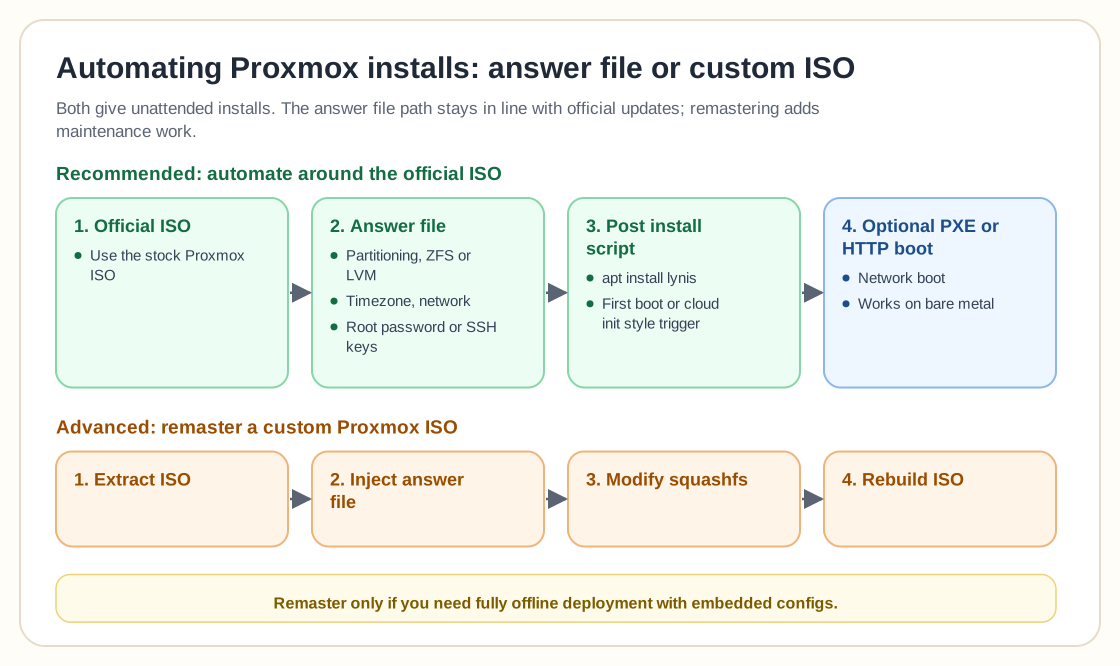
The recommended approach is to automate the installer with an answer file instead of rebuilding the ISO from scratch.
You don’t need to fully “roll your own ISO” to get unattended installs.
Recommended approach (clean and maintainable)
- Use official Proxmox ISO
- Provide automated installer answer file
- Use a post install script for customization
- Optionally wrap in PXE or HTTP boot
This stays in line with official updates and still gives you full automation.
What you can automate
- Auto partitioning (60GB root, rest for VM storage)
- ZFS or LVM layout
- Timezone
- Network configuration
- Root password or SSH keys
- Post install package installation (e.g. lynis)
Everything you described can be automated without manual ISO hacking.
Example architecture for a homelab
Option 1: PXE boot + answer file
- Network boot
- Fully unattended
- Works on bare metal
- Easy to iterate
Option 2: ISO remaster (advanced)
- Extract ISO
- Inject answer file
- Modify squashfs
- Rebuild ISO
ISO remastering works, but it adds maintenance work.
Post install automation strategy
For extra packages like Lynis, run a script like this after installation:
#!/bin/bashapt updateapt install -y lynistimedatectl set-timezone Europe/BerlinTrigger it with a first boot script or a cloud init style approach.
Target platforms
- Bare metal
- Hyper-V
- ESXi
Automated installs behave the same across platforms as long as the storage layout is compatible.
Homelab learning path
- Start with official ISO + manual install
- Build unattended answer file
- Add a post install hardening script
- Experiment with PXE
- Only then explore ISO remastering
You’ll learn more by automating around the ISO than by rebuilding it.
Frequently asked questions
Do I need to rebuild the ISO for unattended installs?
No. An answer file and boot parameters are enough.
Can I customize partition sizes automatically?
Yes, including fixed root size and dynamic VM storage allocation.
Is ISO remastering worth it?
Only if you need fully offline deployment with embedded configs.
What’s the most maintainable solution?
The official ISO, an automated install and a post install script.
Need help with Proxmox?
Use the form below to get in touch about migrations, troubleshooting, and Proxmox design work.