How to Install and Troubleshoot ProxMorph Themes in a Proxmox Cluster
Install ProxMorph themes on a Proxmox cluster and fix new themes that do not appear: clear the browser cache, rerun the script, install on each node.
Overview
This guide covers how to install ProxMorph themes in a Proxmox cluster and what to do when new themes do not appear. ProxMorph v2.4.0 brings the total to 21 themes, including Gruvbox, Nord, Solarized and Tokyo Night, and they show up directly in Proxmox’s native color theme selector. In a clustered setup, one node is enough only if you always reach the cluster web interface through that node, usually the first node. Every other node you open directly needs its own install, as explained below.
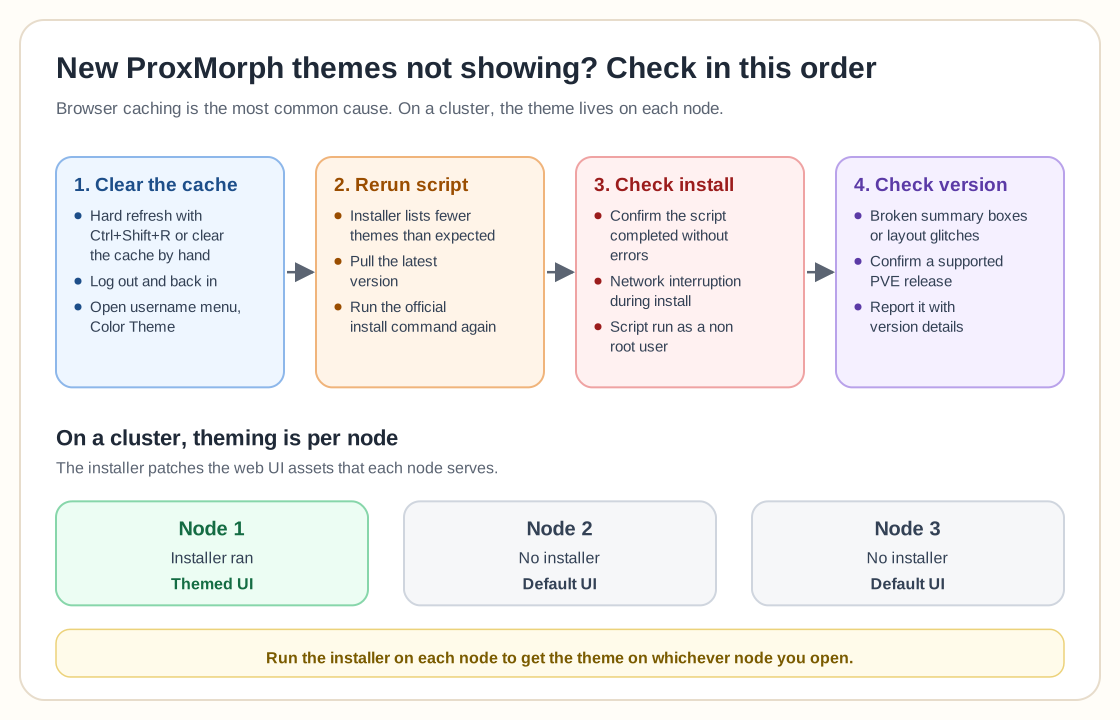
When new themes do not appear after running the installer, browser caching is the most common cause. The installation script can finish successfully while your browser keeps serving the old assets. Do a hard refresh with Ctrl+Shift+R or clear the browser cache by hand. Then log out and back in, and open your username menu and Color Theme to check for the updated list.
If the installer output lists fewer themes than expected, make sure you are pulling the latest version of the script. Running the official install command again should detect and register the new themes automatically. If the script says the themes are already registered but the UI has not changed, the cache is almost always to blame.
In rare cases, UI layout problems such as broken summary boxes point to a minor compatibility glitch with the current Proxmox version. If you see that, confirm you are on a supported PVE release and consider reporting the issue with version details.
One thing specific to clusters: the theme is applied per node, because it patches the web UI assets that node serves. If you open a different node’s IP directly instead of the one you installed on, you get the default interface without the theme. For a consistent theme no matter which node you connect to, run the installer on each node individually instead of once for the whole cluster. This catches people out because the cluster wide web UI feels like one shared interface, while the theming layer lives on each host.
If the install itself failed and caching is not the issue, check that the script really completed without errors. A network interruption during the install and running it as a non root user are the two most common causes of a silent partial install, which leaves you with no visible error and no new themes either.
To sum up: install on every node you open in the browser, clear the cache thoroughly, confirm the versions match and check the theme selector again. On clusters, keep in mind that theming applies per node and not to the whole cluster.
Need help with Proxmox?
Use the form below to get in touch about migrations, troubleshooting, and Proxmox design work.