How to Install Dark Mode Themes on the Proxmox Web UI
Install a Proxmox dark mode theme in five steps with the Stylus browser extension. Pick from 12 themes such as Dracula, Nord and Gruvbox. Fully reversible.
Available dark themes
{theme}
A dark interface style adapted for the Proxmox dashboard, with readable contrast for long sessions.
Why use a custom dark interface
- Improves readability during long server management sessions
- Reduces eye fatigue in low-light environments
- Changes the look of the Proxmox UI without touching how it works
- Easy to apply and fully reversible
- No backend changes, since the customization is only CSS
How to install the themes
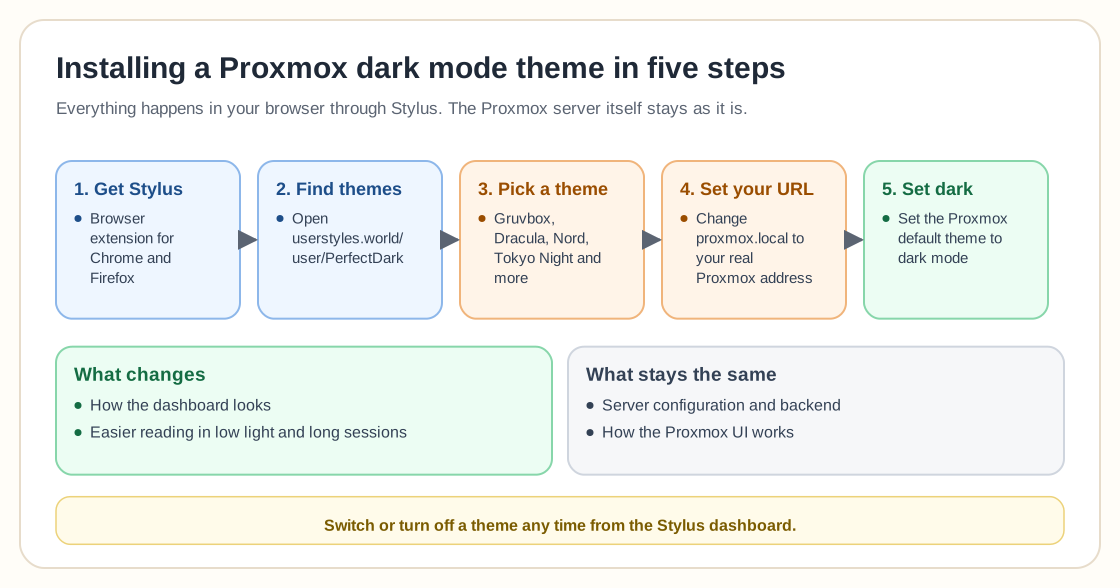
- Install the Stylus browser extension (available for Chrome and Firefox).
- Visit the userstyles repository: userstyles.world/user/PerfectDark
- Select your preferred theme and install it.
- Update the default https://proxmox.local assignment to match your actual Proxmox access URL.
- Set your Proxmox default theme to dark mode so the style renders correctly.
Frequently asked questions
Does this modify my Proxmox server installation?
No. The customization happens in your browser through CSS overrides, and your server configuration stays as it is.
Is the Stylus extension required?
Yes. Stylus is what applies custom CSS to web interfaces that have no advanced theming of their own.
Can I switch between themes easily?
Yes. You can enable or disable themes from the Stylus dashboard at any time.
Will updates to Proxmox break the theme?
Minor UI updates may need small adjustments, but most themes keep working.
Are additional themes planned?
Yes. More interface styles can be added when people ask for them.
Need help with Proxmox?
Use the form below to get in touch about migrations, troubleshooting, and Proxmox design work.